Introduction: Why Clear Communication with Customer Support Matters
In today’s digitally connected world, technical problems can arise at any moment—your smartphone freezes, your laptop refuses to start, or your internet connection drops unexpectedly during an important online meeting. These frustrating situations are all too common and can disrupt our personal, academic, or professional lives. When such issues occur, seeking help from customer support becomes essential. However, resolving these problems efficiently often depends on how well you can explain your technical problem in English.
Imagine you are studying or working abroad, and the only way to solve your device problem is by speaking with a customer support agent over the phone or via live chat. The clarity of your explanation, your ability to use technical vocabulary, and your patience in following instructions can all impact how quickly and successfully your issue is resolved. This real-life context makes “explaining a technical problem to customer support” a vital skill for upper-intermediate and advanced English learners aiming to thrive in an English-speaking environment.
In this comprehensive article, you will master the language, strategies, and cultural awareness required for effective communication with customer support. You’ll find practical vocabulary, model dialogues, actionable tips, and self-assessment exercises. By the end, you will feel confident handling any technical issue, no matter how complex, with professionalism and clarity.
Key Vocabulary and Phrases for Explaining Technical Problems
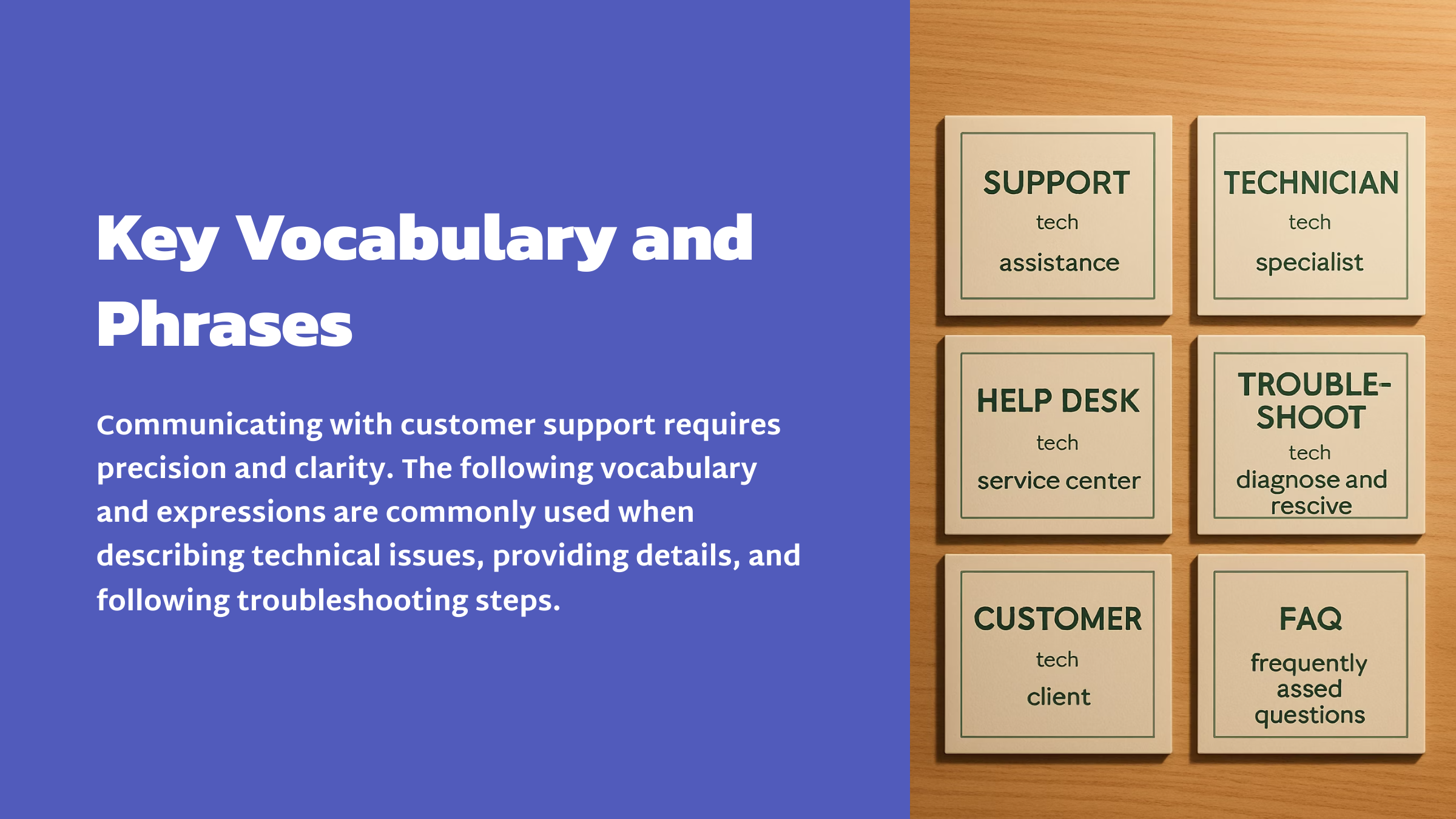
Communicating with customer support requires precision and clarity. The following vocabulary and expressions are commonly used when describing technical issues, providing details, and following troubleshooting steps. Each word or phrase includes an explanation and a model sentence.
Device and Problem-Related Vocabulary
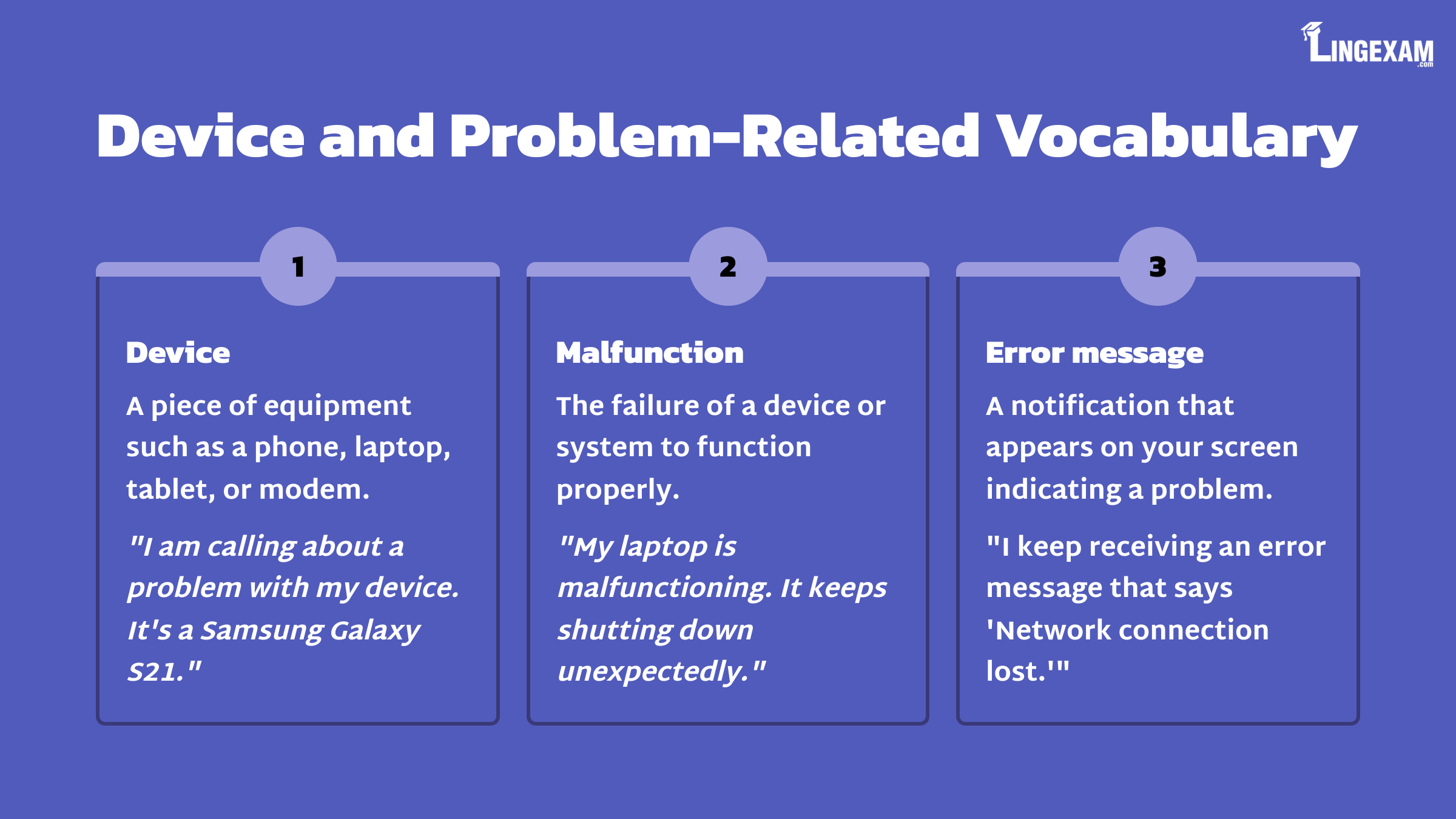
Device
Definition: A piece of equipment such as a phone, laptop, tablet, or modem.
Example: “I am calling about a problem with my device. It’s a Samsung Galaxy S21.”Malfunction
Definition: The failure of a device or system to function properly.
Example: “My laptop is malfunctioning. It keeps shutting down unexpectedly.”Error message
Definition: A notification that appears on your screen indicating a problem.
Example: “I keep receiving an error message that says ‘Network connection lost.’”Unresponsive
Definition: Not reacting to input or commands.
Example: “The touchscreen on my phone is unresponsive.”Glitch
Definition: A small, temporary problem that affects a system or device.
Example: “There’s a glitch with the audio—it cuts out every few minutes.”Freeze / Frozen
Definition: When a device or application stops working and doesn’t respond.
Example: “My computer froze while I was saving a file.”Crash
Definition: When a program or device suddenly stops working.
Example: “The app crashes every time I try to open it.”Lag
Definition: A delay between a command and the device’s response.
Example: “There’s a noticeable lag when I type on my keyboard.”Connectivity issues
Definition: Problems related to connecting to the internet or network.
Example: “I’m experiencing connectivity issues with my Wi-Fi.”Update
Definition: A new version of software designed to fix bugs or improve performance.
Example: “The problem started after I installed the latest update.”
Phrases for Describing a Problem
The problem started…
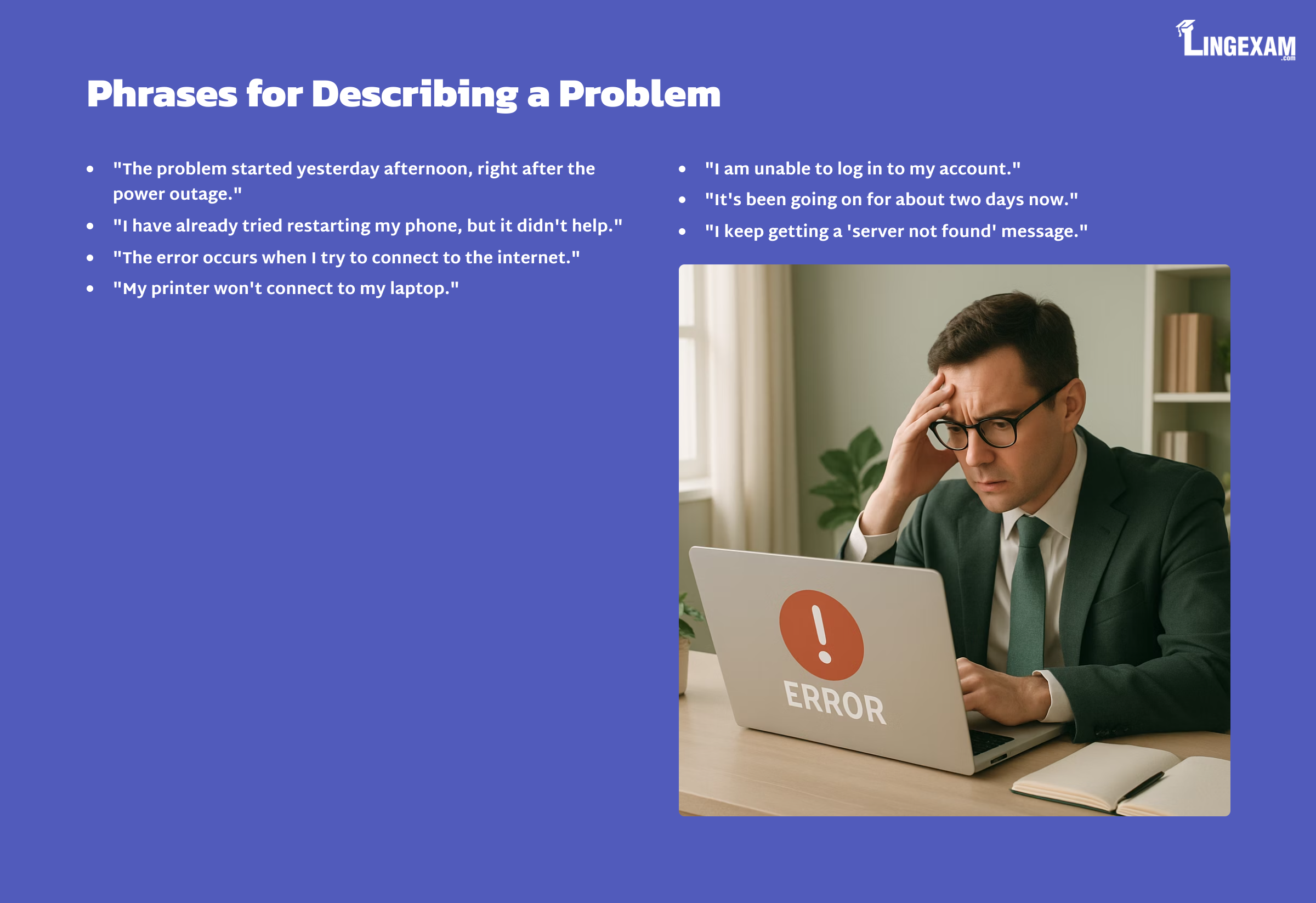
Example: “The problem started yesterday afternoon, right after the power outage.”I have already tried…
Example: “I have already tried restarting my phone, but it didn’t help.”It happens when…
Example: “The error occurs when I try to connect to the internet.”It doesn’t / won’t…
Example: “My printer won’t connect to my laptop.”I am unable to…
Example: “I am unable to log in to my account.”It’s been going on for…
Example: “It’s been going on for about two days now.”I keep getting…
Example: “I keep getting a ‘server not found’ message.”
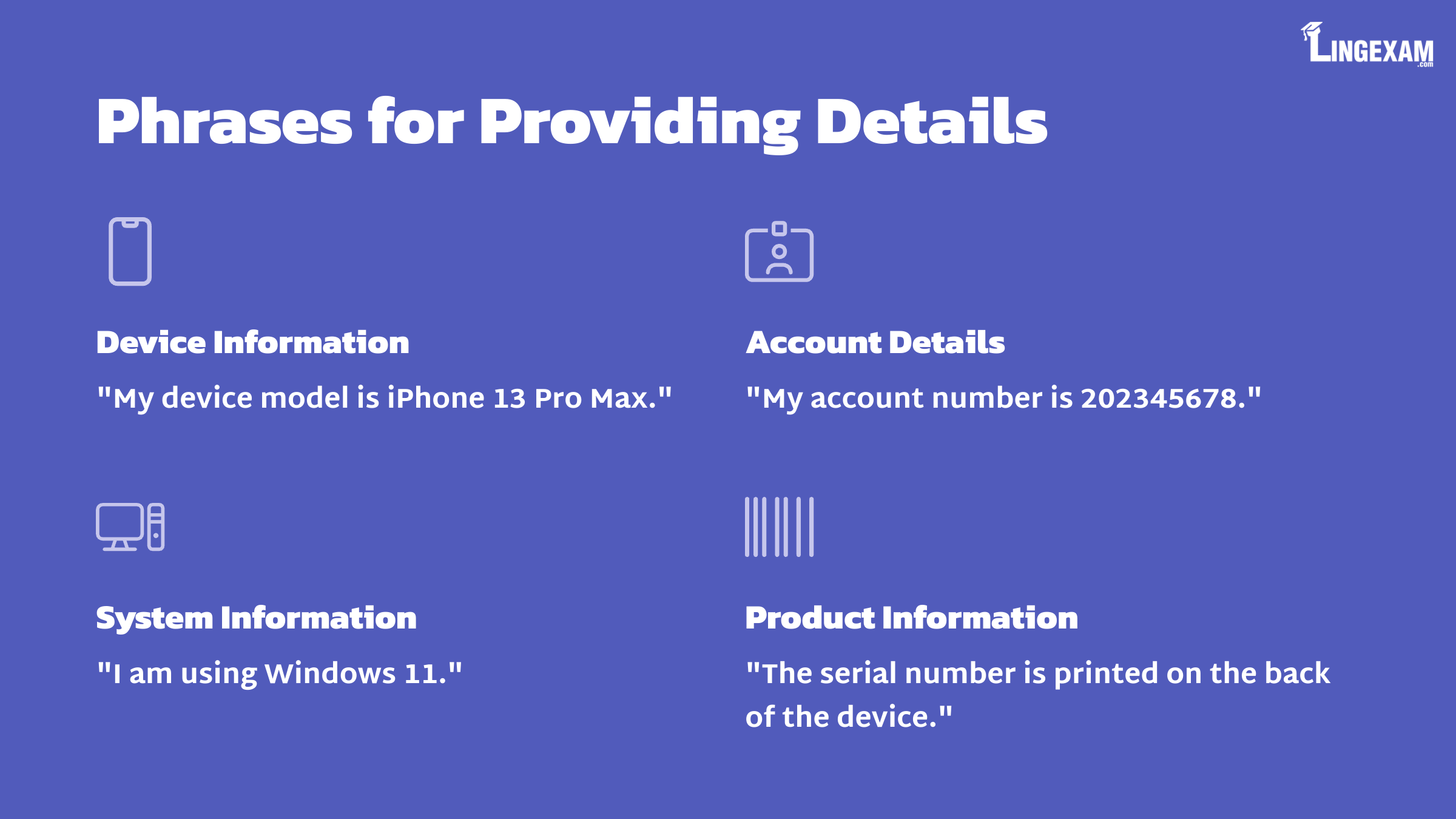
Phrases for Providing Details
My device model is…
Example: “My device model is iPhone 13 Pro Max.”My account number is…
Example: “My account number is 202345678.”I am using [operating system/version]…
Example: “I am using Windows 11.”The serial number is…
Example: “The serial number is printed on the back of the device.”
Polite Phrases and Tone
Could you please…?
Example: “Could you please guide me through the steps?”Would you mind…?
Example: “Would you mind repeating that last instruction?”I appreciate your help.
Example: “I appreciate your help in resolving this issue.”Thank you for your patience.
Example: “Thank you for your patience while I restart my device.”
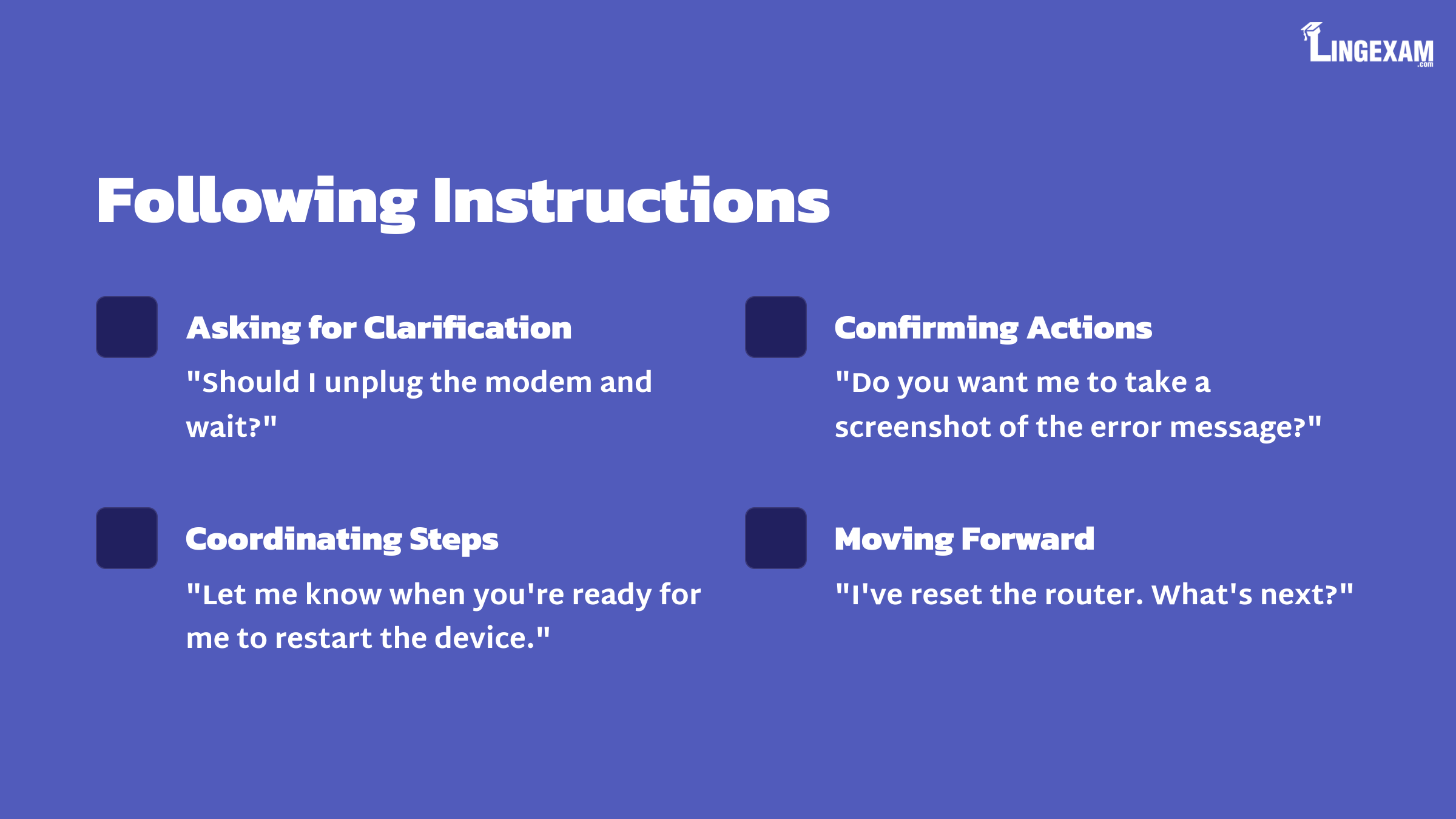
Following Instructions
Should I…?
Example: “Should I unplug the modem and wait?”Do you want me to…?
Example: “Do you want me to take a screenshot of the error message?”Let me know when you’re ready.
Example: “Let me know when you’re ready for me to restart the device.”I’ve done that. What’s next?
Example: “I’ve reset the router. What’s next?”
Model Dialogue: Natural Communication with Customer Support
Let’s see a full example of a natural, effective conversation between a customer (user) and a customer support agent. This script demonstrates clear explanation, polite tone, and appropriate vocabulary.
Scenario
You’re having trouble connecting your laptop to Wi-Fi. You’ve already restarted the laptop, but the problem persists. You decide to call customer support.
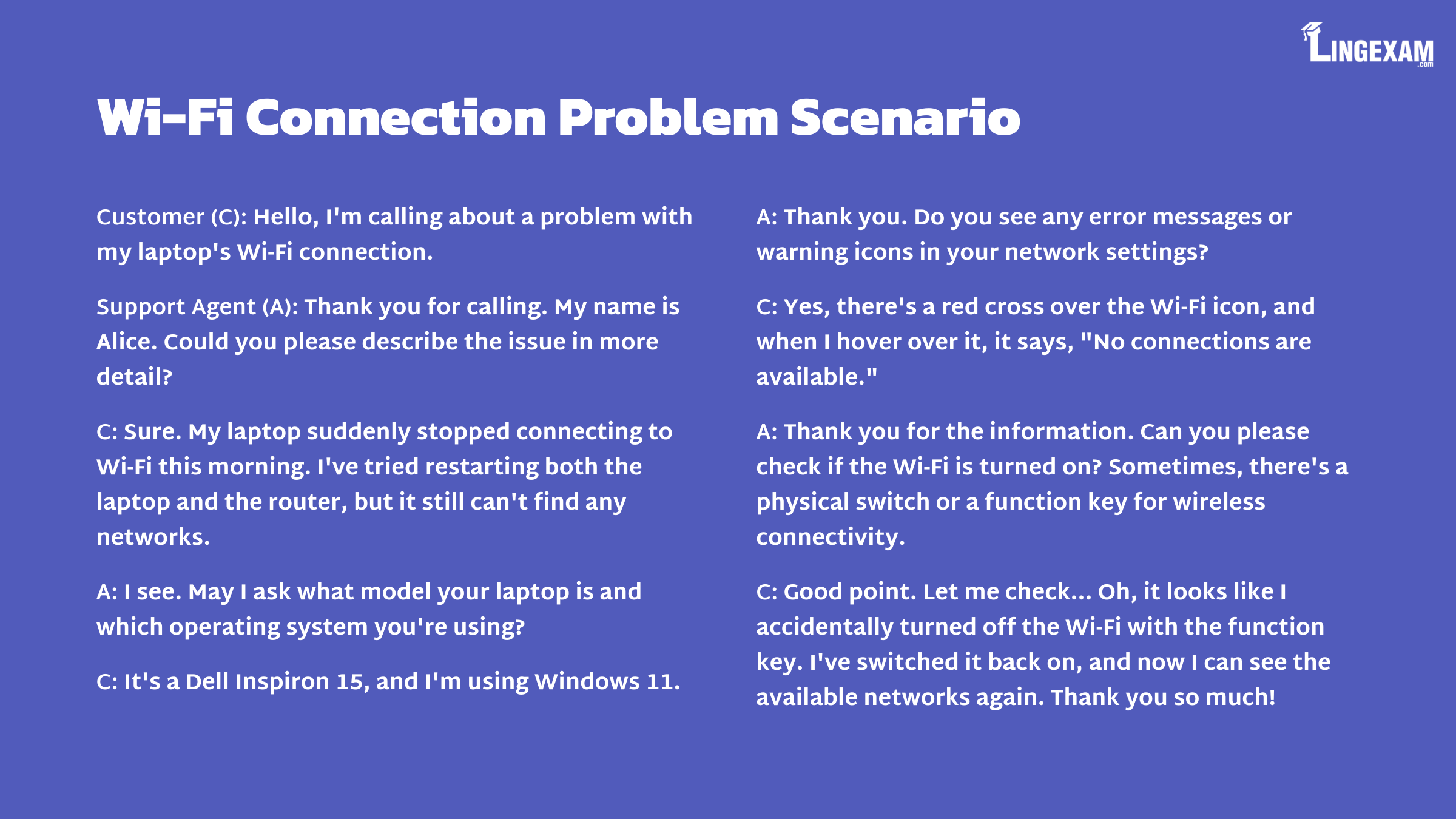
Customer (C): Hello, I’m calling about a problem with my laptop’s Wi-Fi connection.
Support Agent (A): Thank you for calling. My name is Alice. Could you please describe the issue in more detail?
C: Sure. My laptop suddenly stopped connecting to Wi-Fi this morning. I’ve tried restarting both the laptop and the router, but it still can’t find any networks.
A: I see. May I ask what model your laptop is and which operating system you’re using?
C: It’s a Dell Inspiron 15, and I’m using Windows 11.
A: Thank you. Do you see any error messages or warning icons in your network settings?
C: Yes, there’s a red cross over the Wi-Fi icon, and when I hover over it, it says, “No connections are available.”
A: Thank you for the information. Can you please check if the Wi-Fi is turned on? Sometimes, there’s a physical switch or a function key for wireless connectivity.
C: Good point. Let me check… Oh, it looks like I accidentally turned off the Wi-Fi with the function key. I’ve switched it back on, and now I can see the available networks again. Thank you so much!
A: You’re welcome! I’m glad it’s working. Is there anything else I can assist you with today?
C: No, that solved my problem. I appreciate your help!
A: My pleasure. Have a great day!

Language Analysis
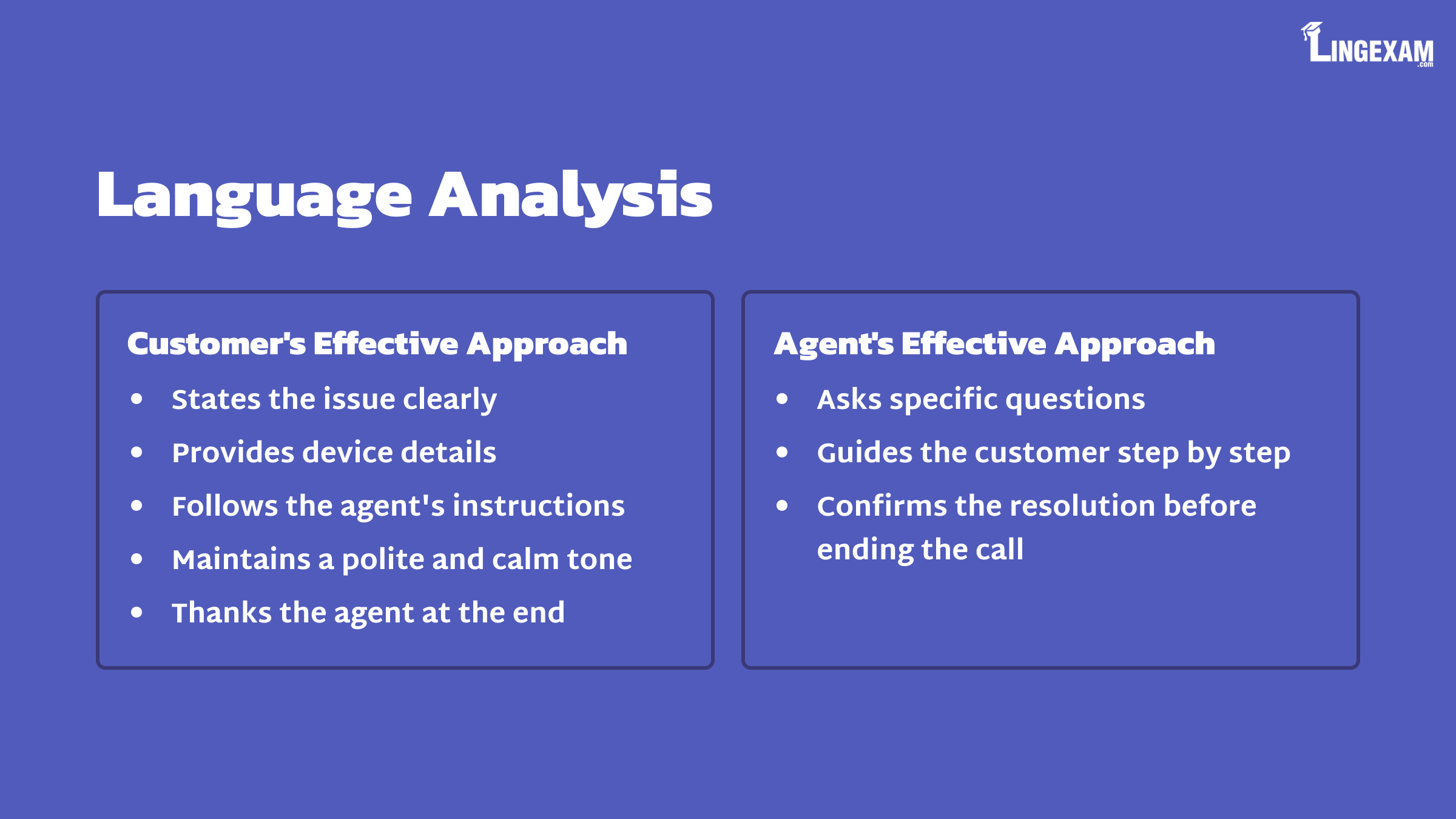
In this script, notice how the customer:
States the issue clearly.
Provides device details.
Follows the agent’s instructions.
Maintains a polite and calm tone.
Thanks the agent at the end.
The agent, in turn, asks specific questions, guides the customer step by step, and confirms the resolution before ending the call.
Tips and Strategies for Explaining Technical Problems Effectively
Whether you are speaking on the phone, writing an email, or chatting online, there are universal strategies that will help you resolve technical problems with customer support more quickly and smoothly.
1. Prepare Your Information in Advance
Before contacting support, have the following information ready:
Device model and operating system/version
Account number or registered email
Serial number (if relevant)
Details of any recent changes or updates
Notes on what you have already tried
This saves time and ensures you can answer the agent’s questions efficiently.
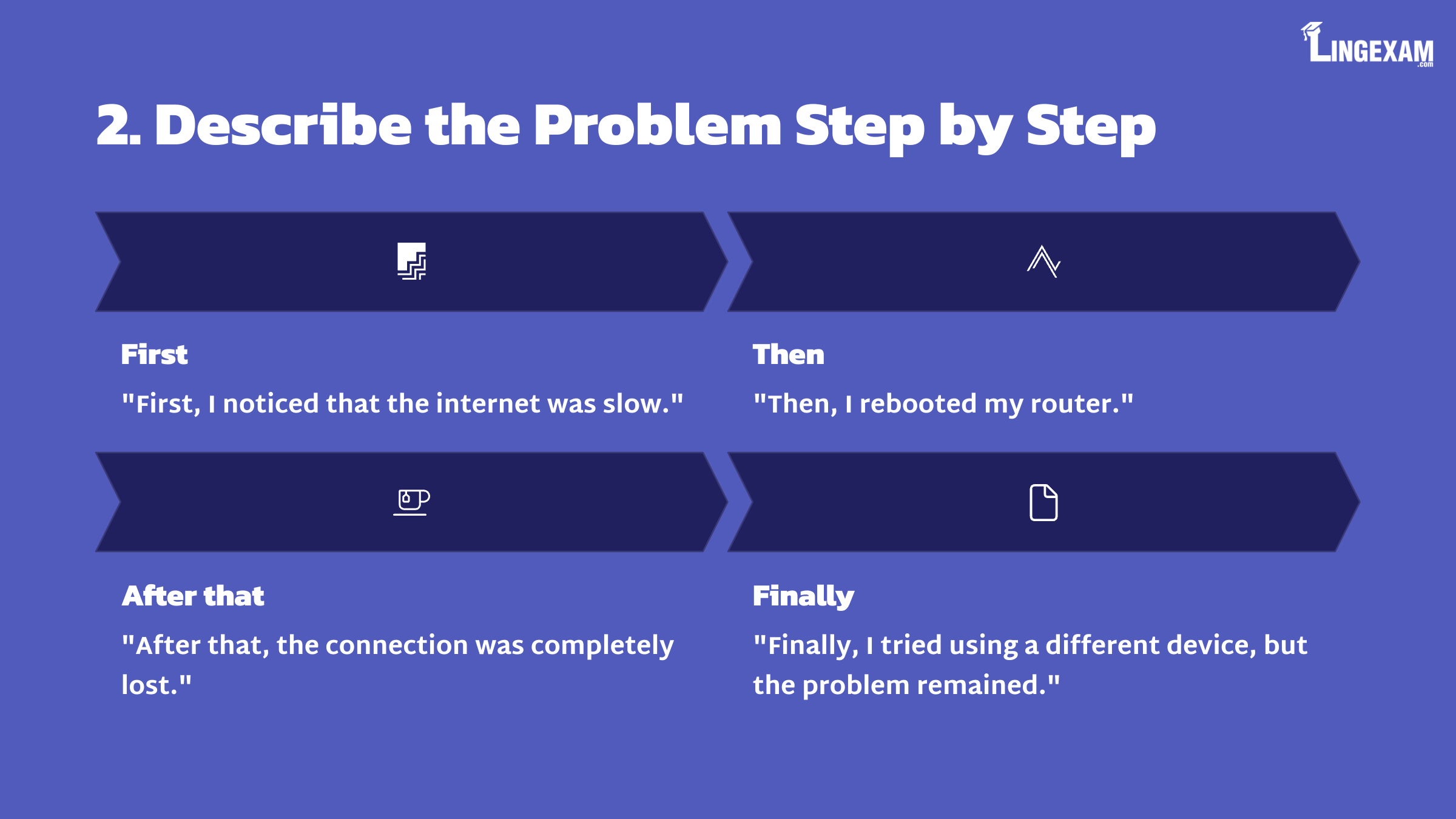
2. Describe the Problem Step by Step
Explain exactly what happened, when it started, and what you have done so far. Use sequence markers to be clear:
First, I…
Then, I…
After that, I…
Finally, I…
For example:
“First, I noticed that the internet was slow. Then, I rebooted my router. After that, the connection was completely lost. Finally, I tried using a different device, but the problem remained.”
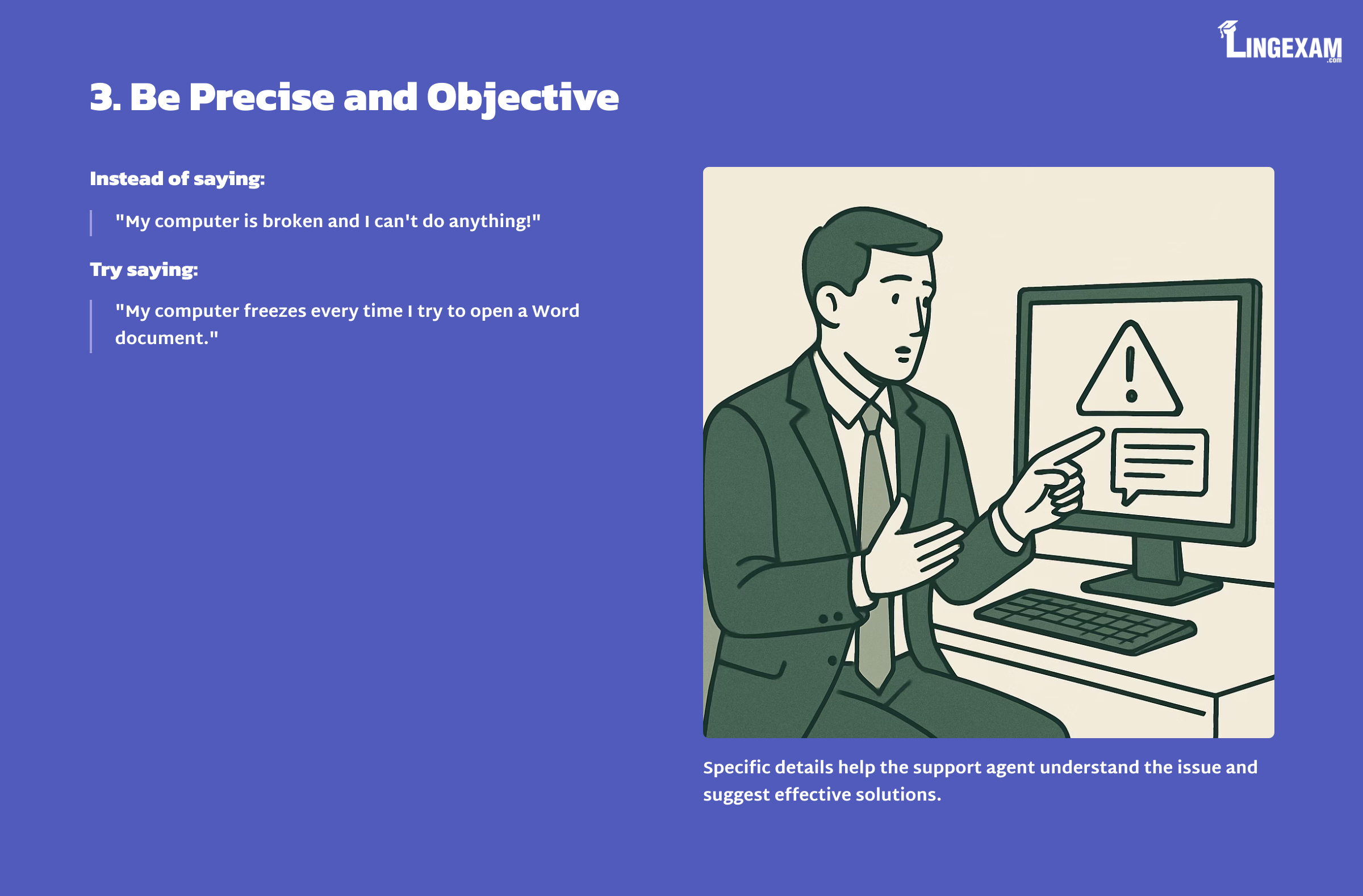
3. Be Precise and Objective
Avoid emotional language or vague statements. Instead of saying,
“My computer is broken and I can’t do anything!”
try:
“My computer freezes every time I try to open a Word document.”
Specific details help the support agent understand the issue and suggest effective solutions.
4. Use the Right Vocabulary
Refer to the vocabulary list above and avoid overly technical jargon unless you are sure it’s correct. It’s better to say,
“The screen is unresponsive,”
than to guess at a technical term you’re unsure about.
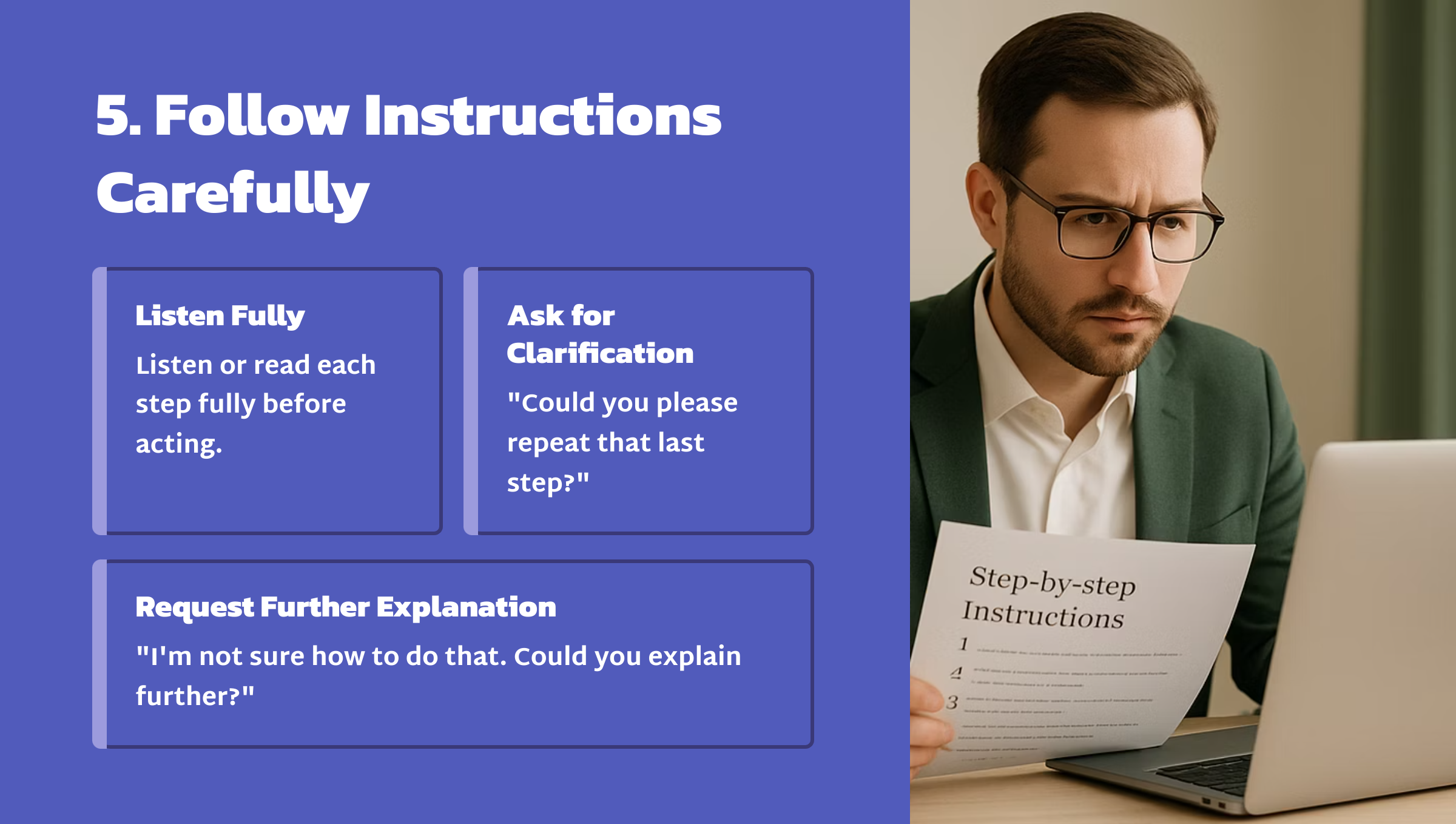
5. Follow Instructions Carefully
Listen or read each step fully before acting. If you’re not sure, ask the agent to repeat or clarify:
“Could you please repeat that last step?”
“I’m not sure how to do that. Could you explain further?”
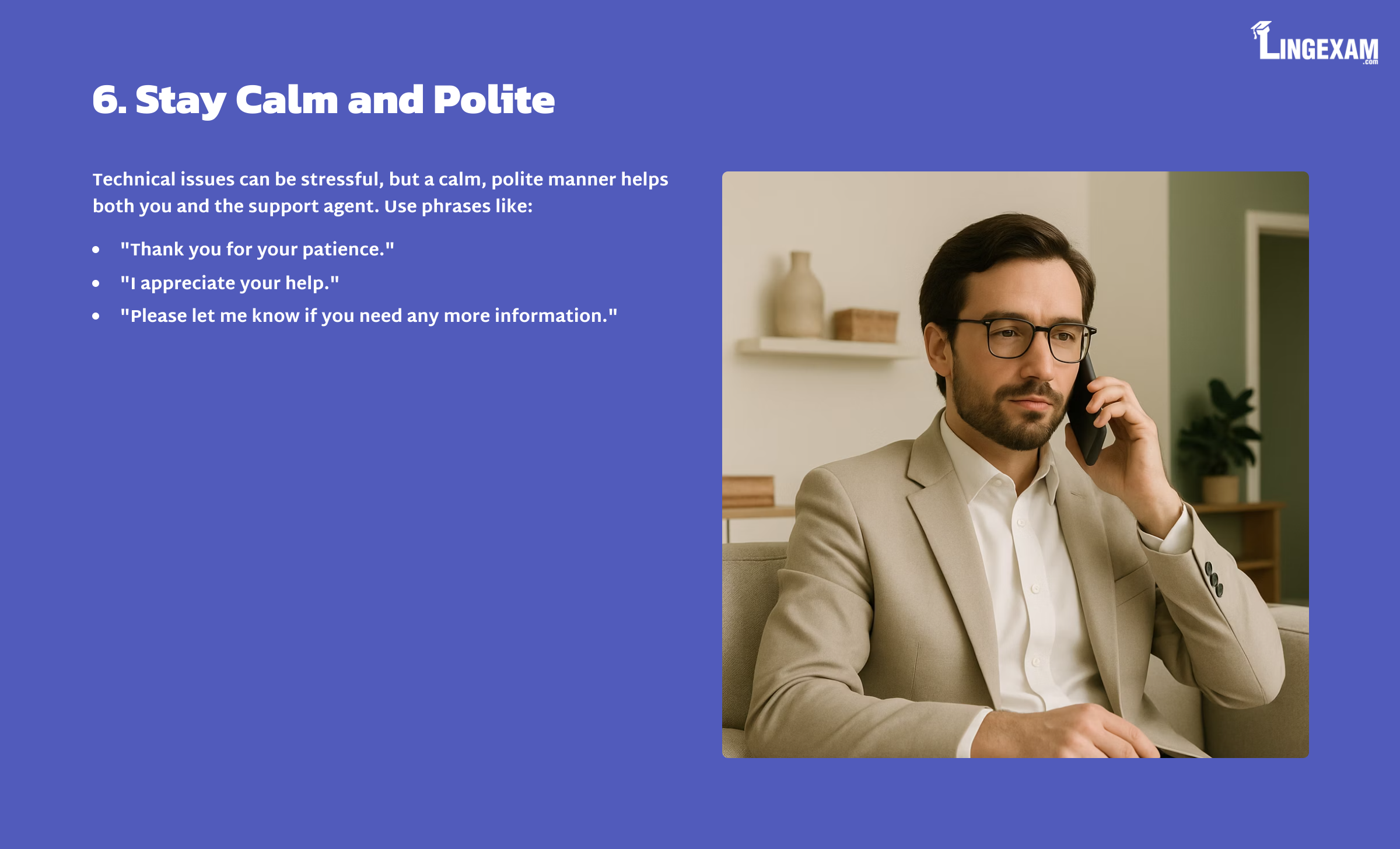
6. Stay Calm and Polite
Technical issues can be stressful, but a calm, polite manner helps both you and the support agent. Use phrases like:
“Thank you for your patience.”
“I appreciate your help.”
“Please let me know if you need any more information.”
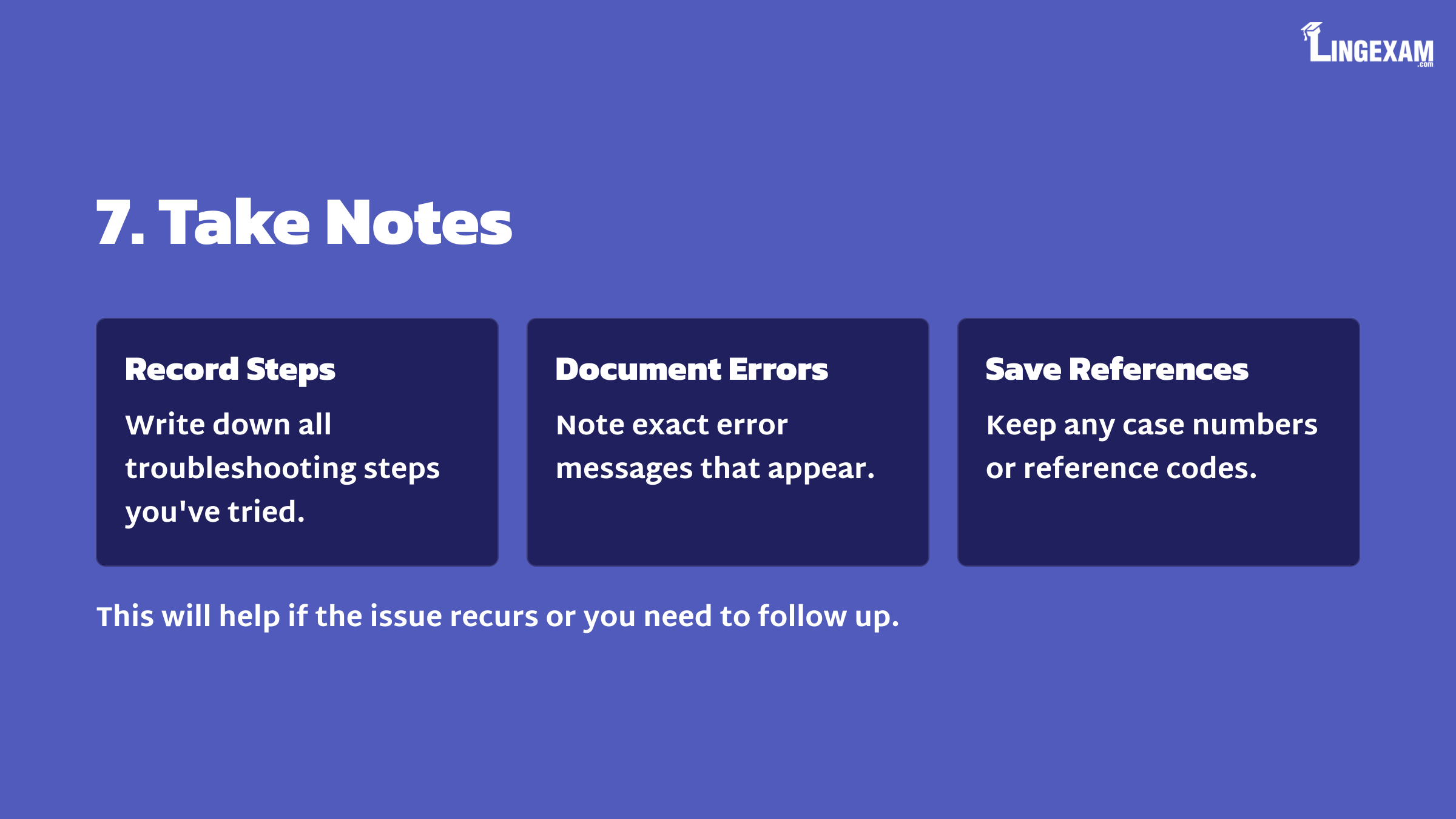
7. Take Notes
Record the steps you have tried, error messages, and any reference numbers the support agent gives you. This will help if the issue recurs or you need to follow up.
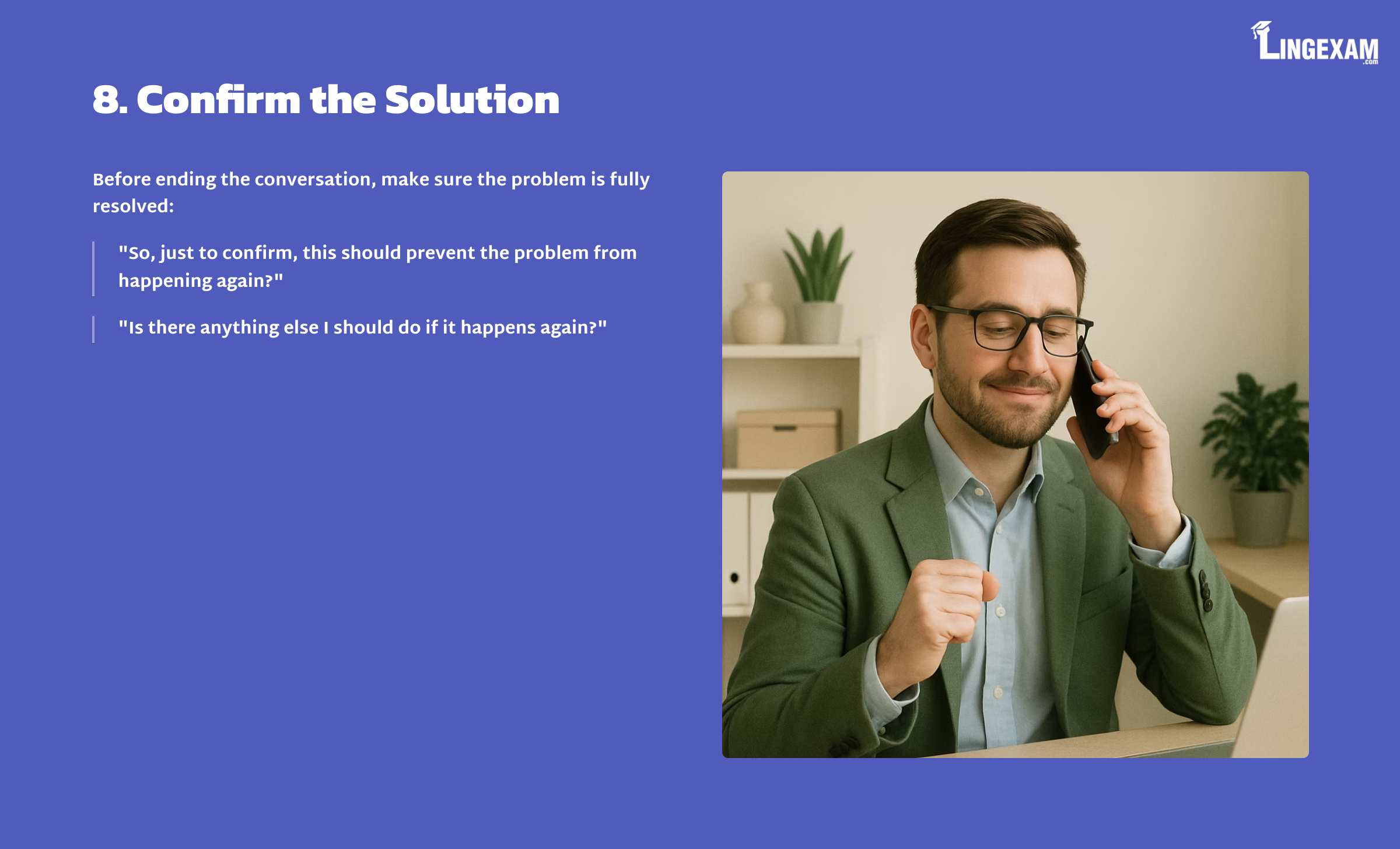
8. Confirm the Solution
Before ending the conversation, make sure the problem is fully resolved:
“So, just to confirm, this should prevent the problem from happening again?”
“Is there anything else I should do if it happens again?”
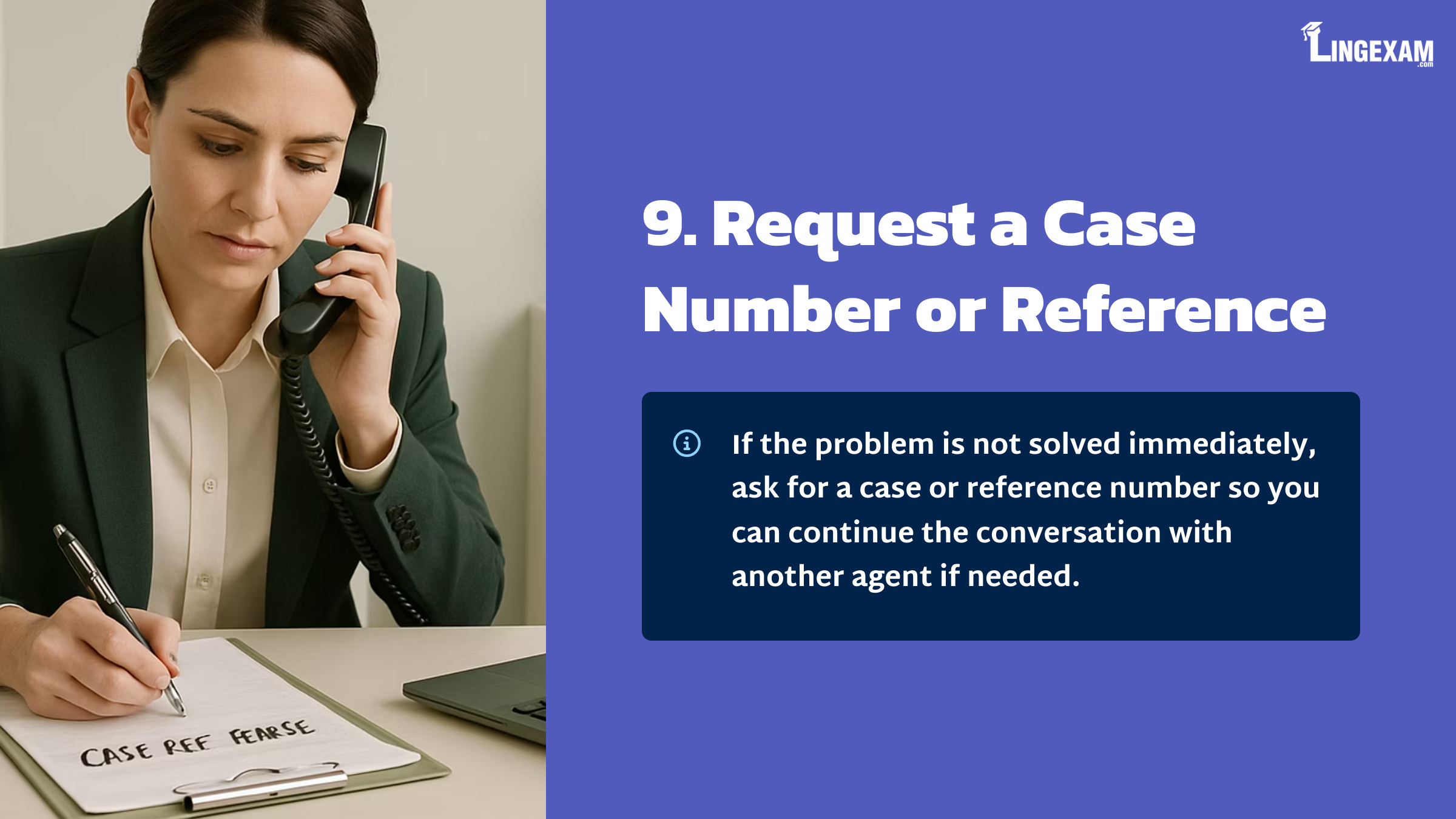
9. Request a Case Number or Reference
If the problem is not solved immediately, ask for a case or reference number so you can continue the conversation with another agent if needed.
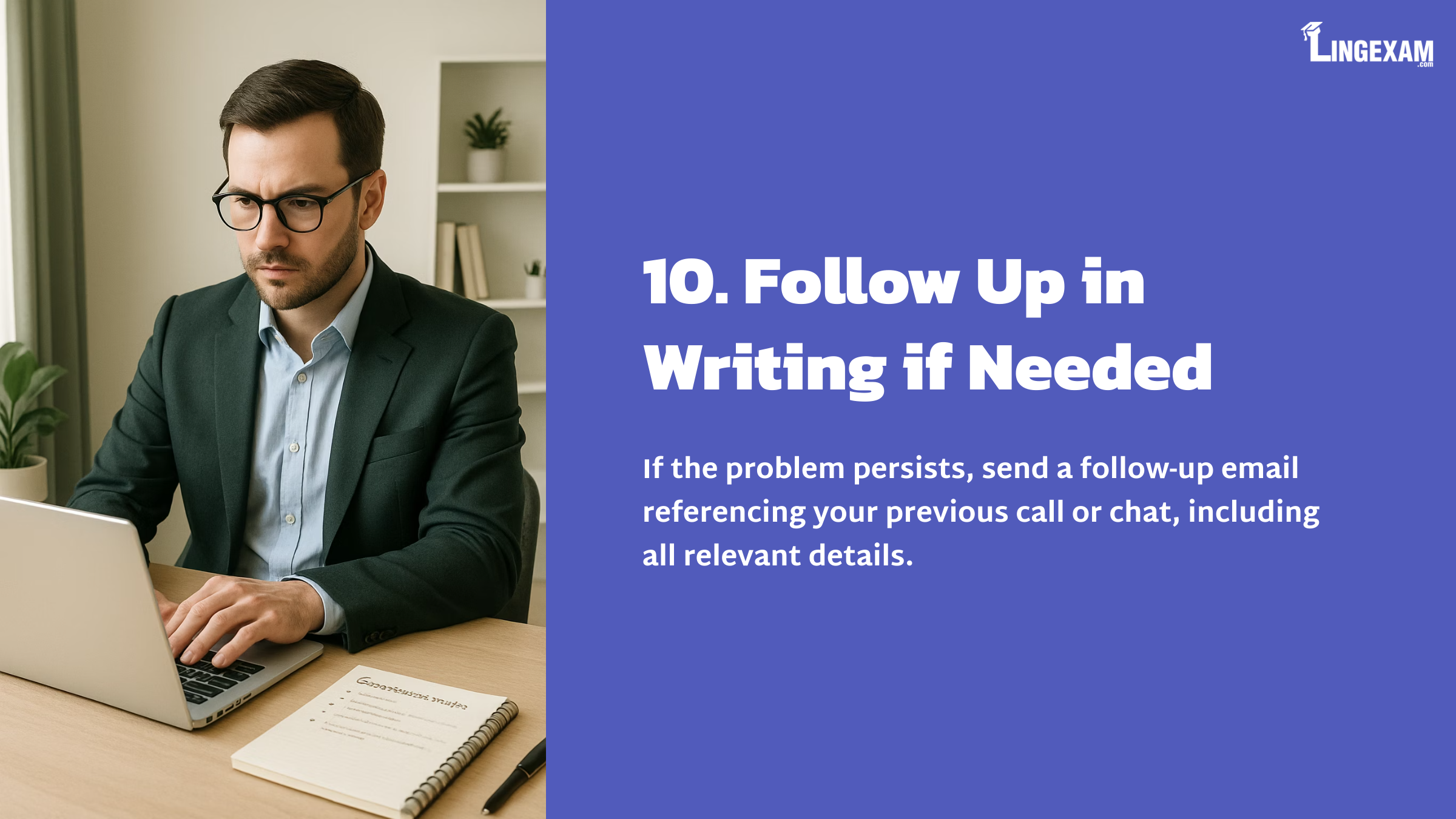
10. Follow Up in Writing if Needed
If the problem persists, send a follow-up email referencing your previous call or chat, including all relevant details.
Common Challenges and How to Overcome Them
1. Describing Unfamiliar Problems
Sometimes, you may not know the correct technical term for your issue. In these cases, use descriptive language:
“There’s a blue screen with some white text, and I can’t do anything.”
“My phone gets very hot after a few minutes of use.”
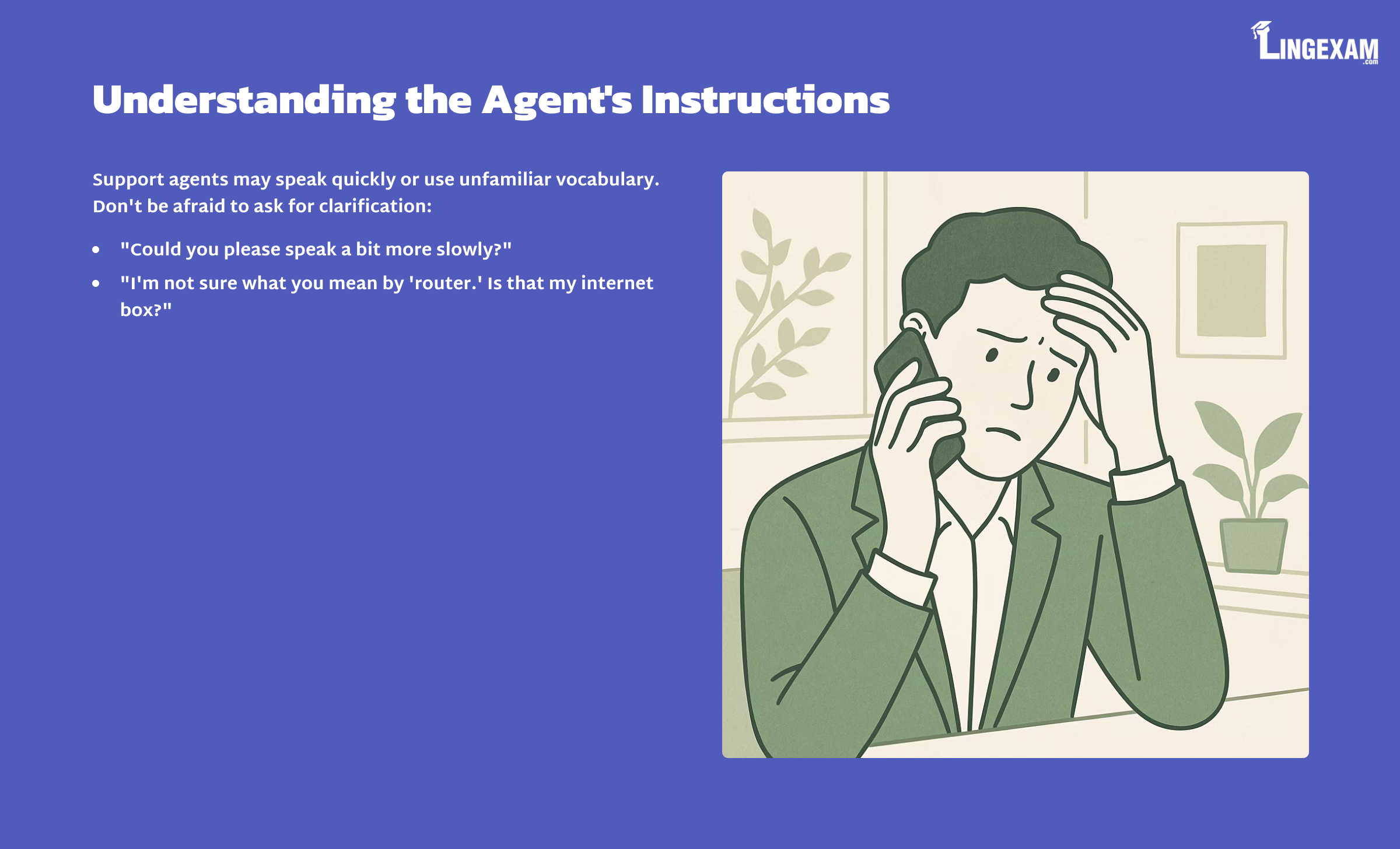
2. Understanding the Agent’s Instructions
Support agents may speak quickly or use unfamiliar vocabulary. Don’t be afraid to ask for clarification:
“Could you please speak a bit more slowly?”
“I’m not sure what you mean by ‘router.’ Is that my internet box?”
3. Communicating by Email or Chat
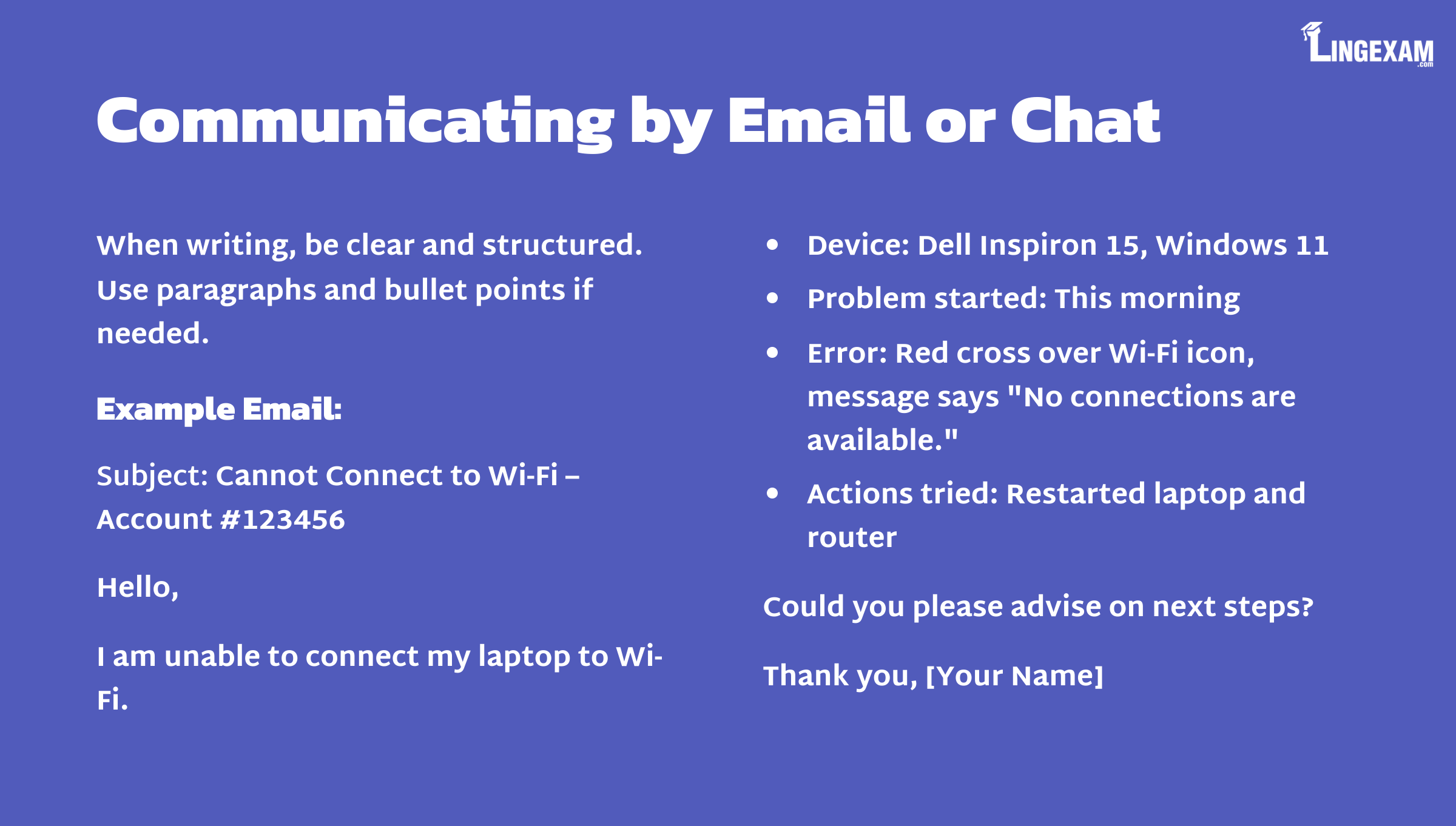
When writing, be clear and structured. Use paragraphs and bullet points if needed. For example:
Subject: Cannot Connect to Wi-Fi – Account #123456
Hello,
I am unable to connect my laptop to Wi-Fi.
Device: Dell Inspiron 15, Windows 11
Problem started: This morning
Error: Red cross over Wi-Fi icon, message says “No connections are available.”
Actions tried: Restarted laptop and router
Could you please advise on next steps?
Thank you,
[Your Name]
4. Managing Frustration
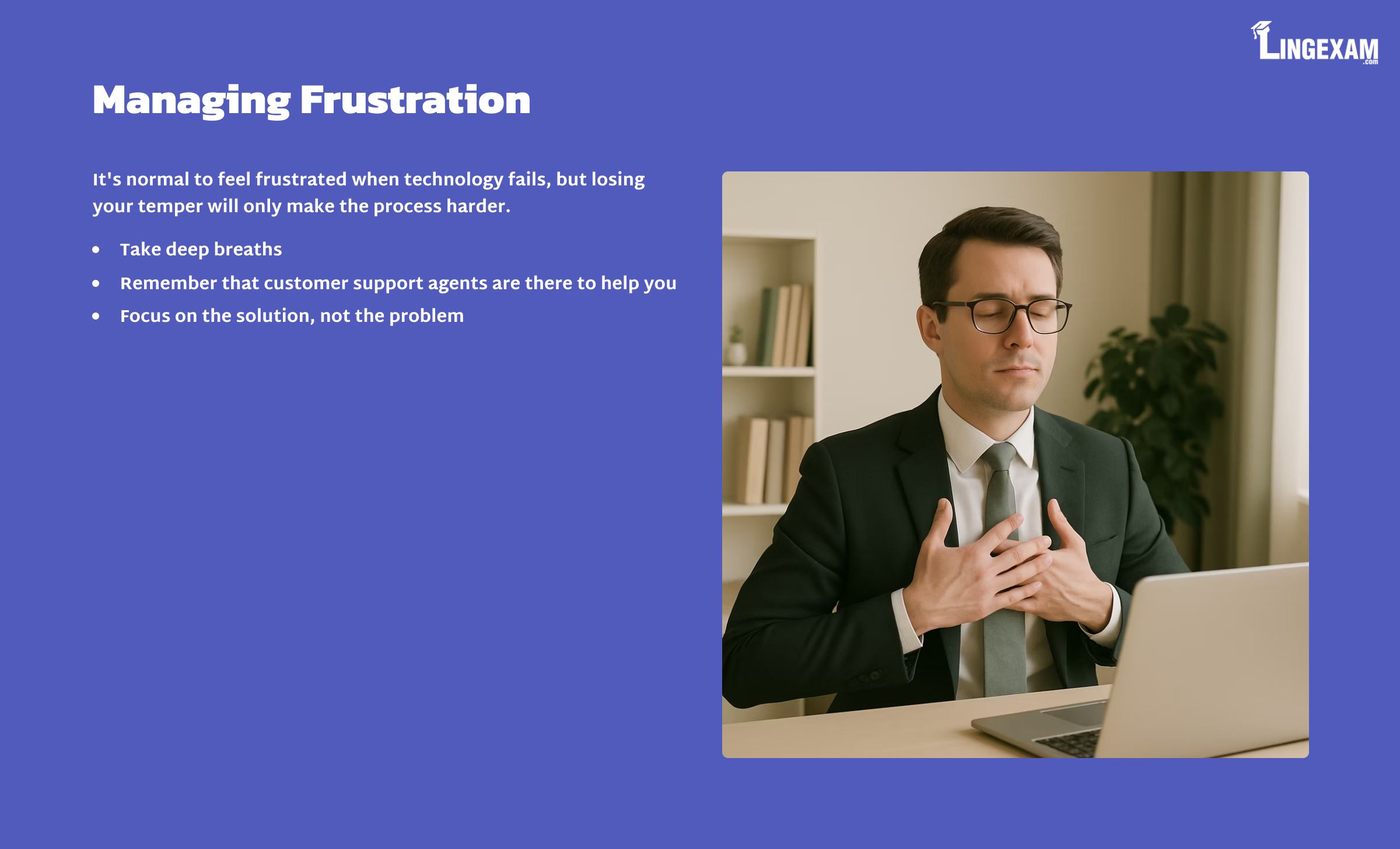
It’s normal to feel frustrated when technology fails, but losing your temper will only make the process harder. Take deep breaths, and remember that customer support agents are there to help you.
Lorem ipsum dolor sit amet, consectetur adipiscing elit. Ut elit tellus, luctus nec ullamcorper mattis, pulvinar dapibus leo.
Additional Useful Phrases for Troubleshooting
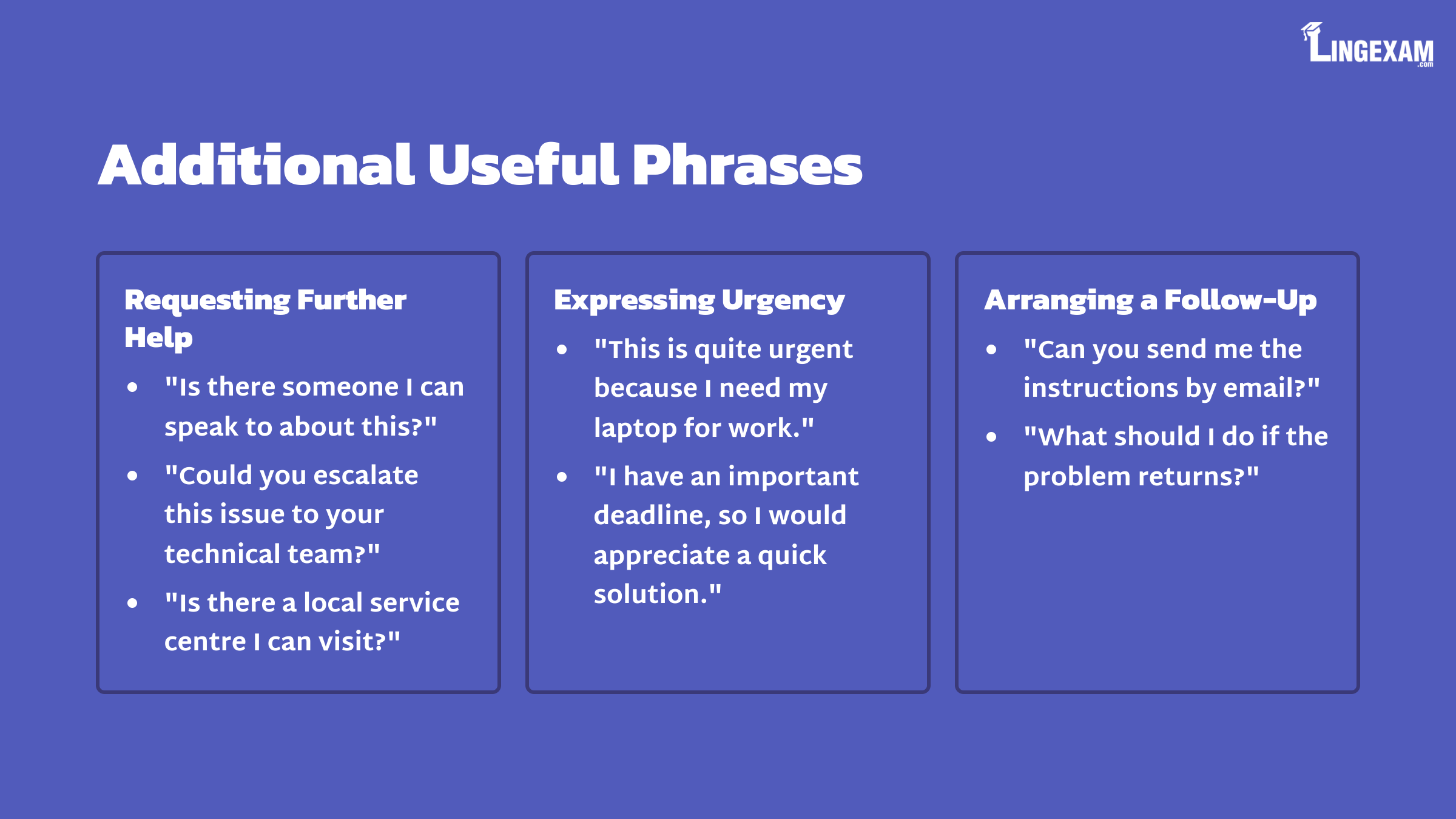
Requesting Further Help
“Is there someone I can speak to about this?”
“Could you escalate this issue to your technical team?”
“Is there a local service centre I can visit?”
Arranging a Follow-Up
“Can you send me the instructions by email?”
“What should I do if the problem returns?”
Providing Feedback
“Thank you for your assistance; you’ve been very helpful.”
“I’m satisfied with the solution.”
“I would like to provide feedback about my experience.”
Practice Tasks for Learners
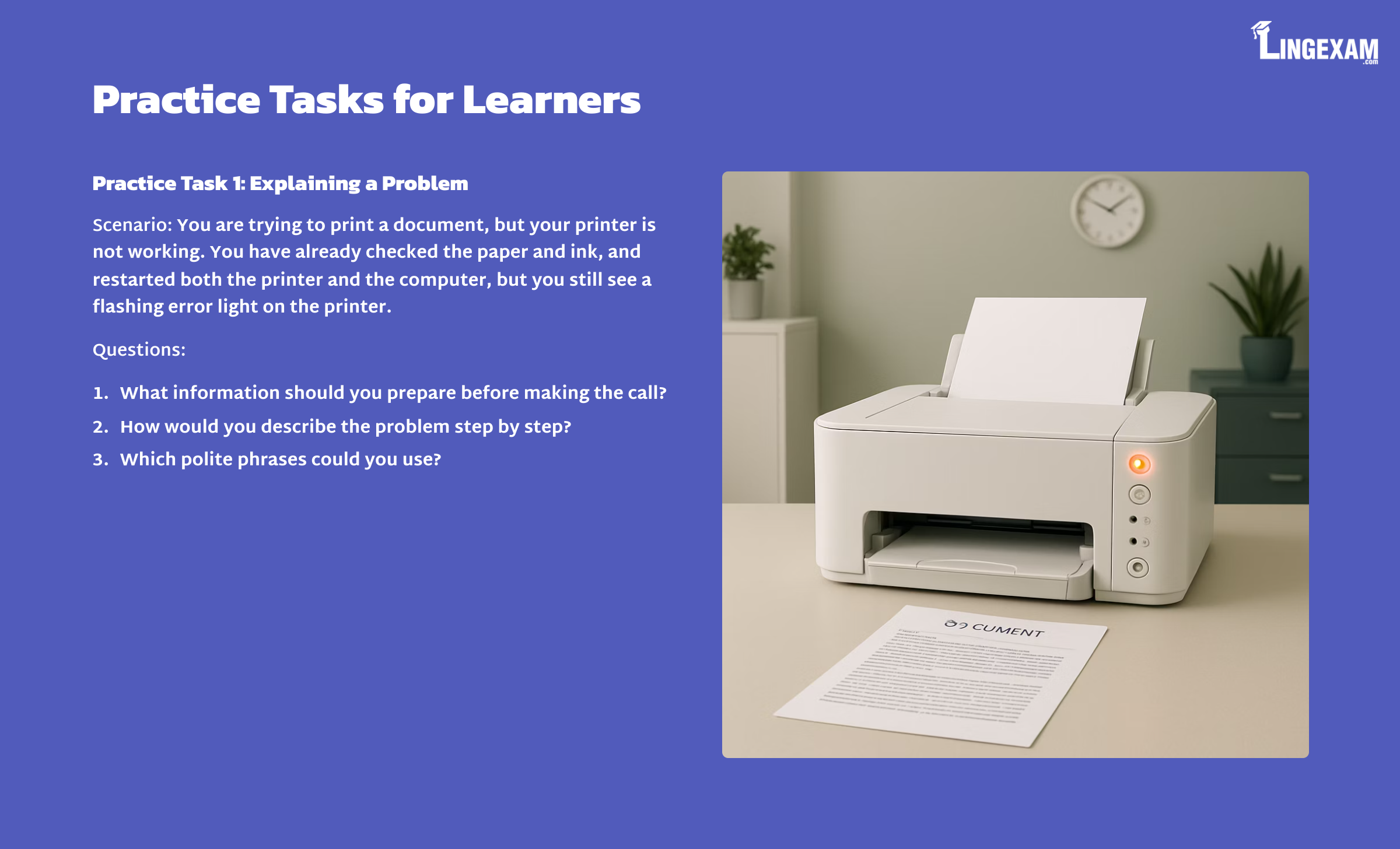
Practice Task 1: Explaining a Problem
Read the following scenario and answer the questions:
You are trying to print a document, but your printer is not working. You have already checked the paper and ink, and restarted both the printer and the computer, but you still see a flashing error light on the printer. Call the customer support line and explain your problem.
Questions:
What information should you prepare before making the call?
How would you describe the problem step by step?
Which polite phrases could you use to make the conversation smoother?
Practice Task 2: Writing an Email to Customer Support
Write a short email to customer support explaining a technical problem you have experienced with your phone. Include the following details:
Device model and operating system
When the problem started
What you have already tried
The error message (if any)
A polite request for help
Answer Key and Explanations
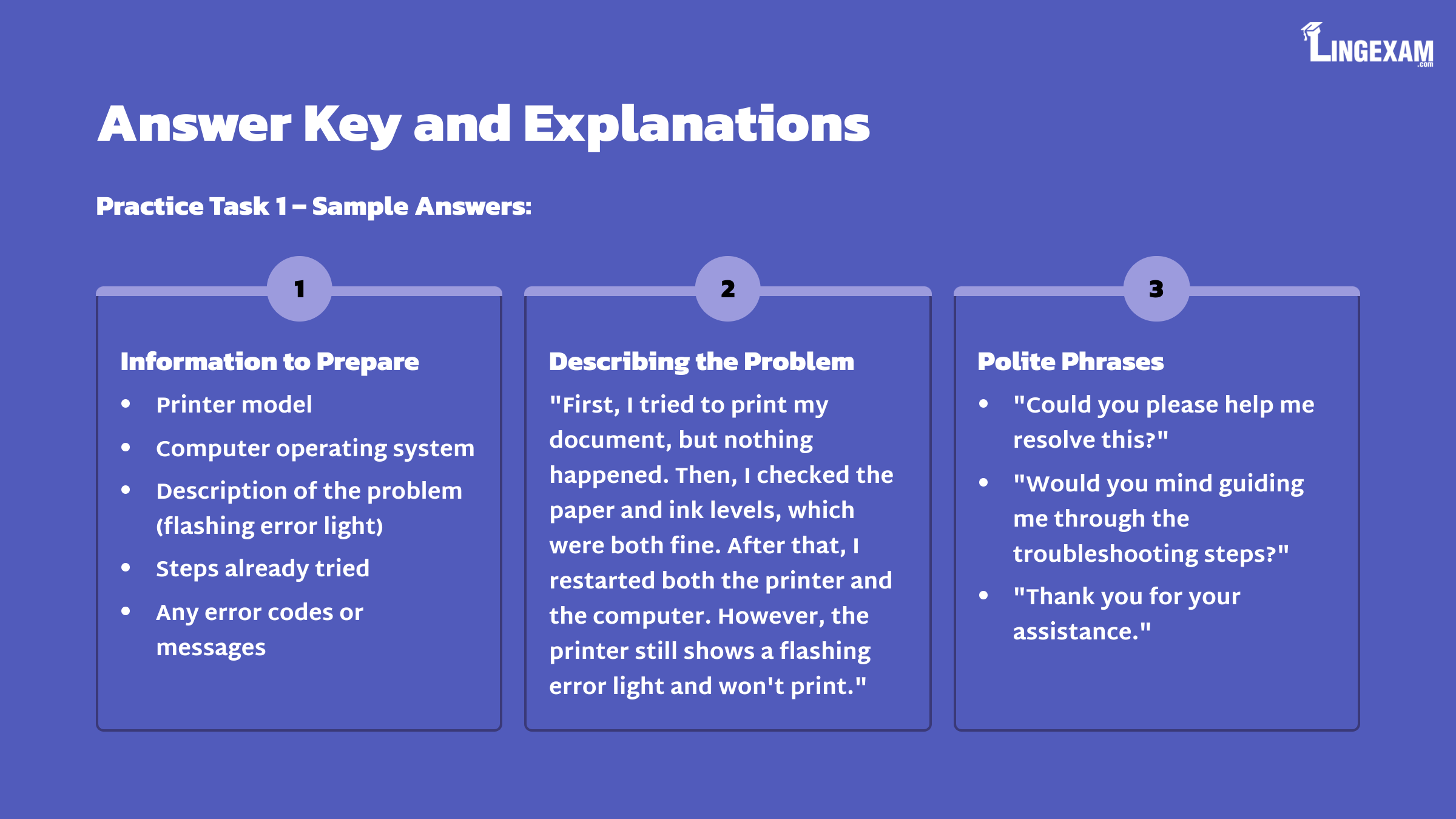
Practice Task 1 – Sample Answers:
Information to Prepare:
Printer model
Computer operating system
Description of the problem (flashing error light)
Steps already tried (checked paper and ink, restarted printer and computer)
Any error codes or messages
Describing the Problem Step by Step:
“First, I tried to print my document, but nothing happened.
Then, I checked the paper and ink levels, which were both fine.
After that, I restarted both the printer and the computer.
However, the printer still shows a flashing error light and won’t print.”
Polite Phrases:
“Could you please help me resolve this?”
“Would you mind guiding me through the troubleshooting steps?”
“Thank you for your assistance.”
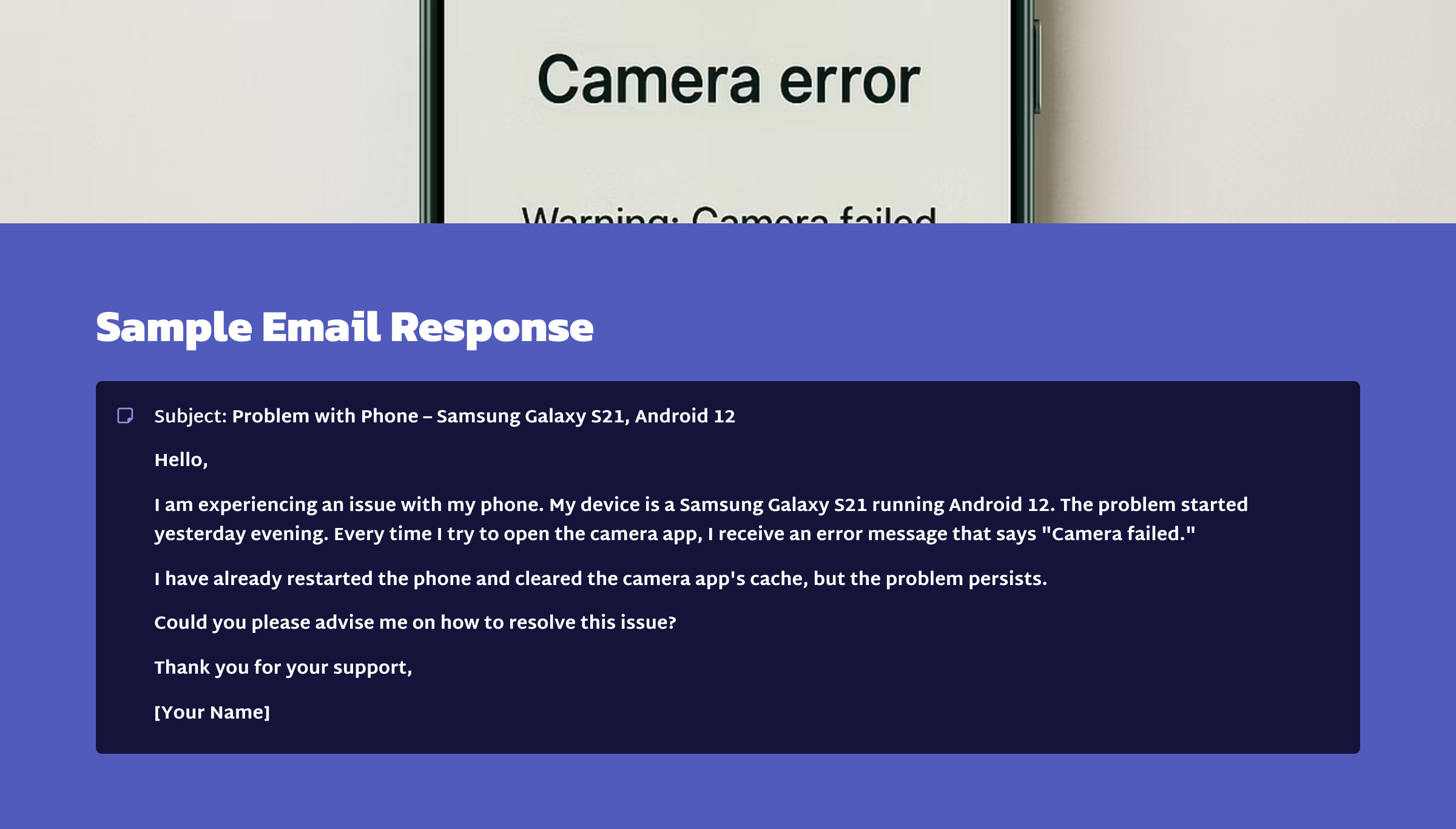
Practice Task 2 – Sample Email:
Subject: Problem with Phone – Samsung Galaxy S21, Android 12
Hello,
I am experiencing an issue with my phone. My device is a Samsung Galaxy S21 running Android 12. The problem started yesterday evening. Every time I try to open the camera app, I receive an error message that says “Camera failed.”
I have already restarted the phone and cleared the camera app’s cache, but the problem persists.
Could you please advise me on how to resolve this issue?
Thank you for your support,
[Your Name]
Frequently Asked Questions (FAQs) About Explaining Technical Problems
Q1. What should I do if I don’t understand the support agent’s instructions?
Ask for clarification politely. For example, “Could you please explain that in another way?” or “Can you speak a little more slowly?”
Q2. How can I make sure my explanation is clear?
Use short sentences, provide details in logical order, and avoid unrelated information.
Q3. What if the issue is not resolved during the call?
Request a case or reference number, and ask for further steps or follow-up.
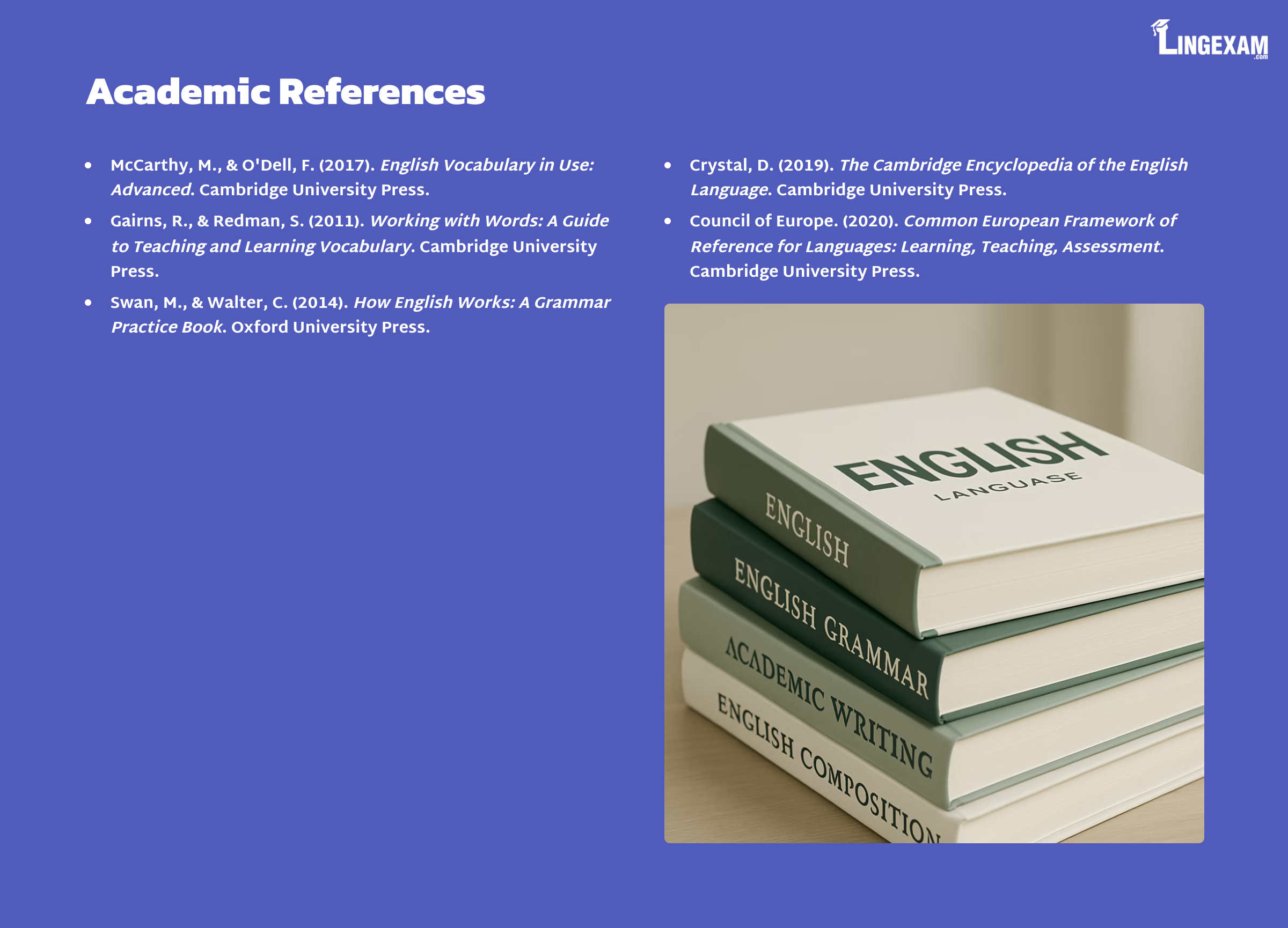
Academic References
McCarthy, M., & O’Dell, F. (2017). English Vocabulary in Use: Advanced. Cambridge University Press.
Gairns, R., & Redman, S. (2011). Working with Words: A Guide to Teaching and Learning Vocabulary. Cambridge University Press.
Swan, M., & Walter, C. (2014). How English Works: A Grammar Practice Book. Oxford University Press.
Crystal, D. (2019). The Cambridge Encyclopedia of the English Language. Cambridge University Press.
Council of Europe. (2020). Common European Framework of Reference for Languages: Learning, Teaching, Assessment. Cambridge University Press.
Conclusion and Further Learning
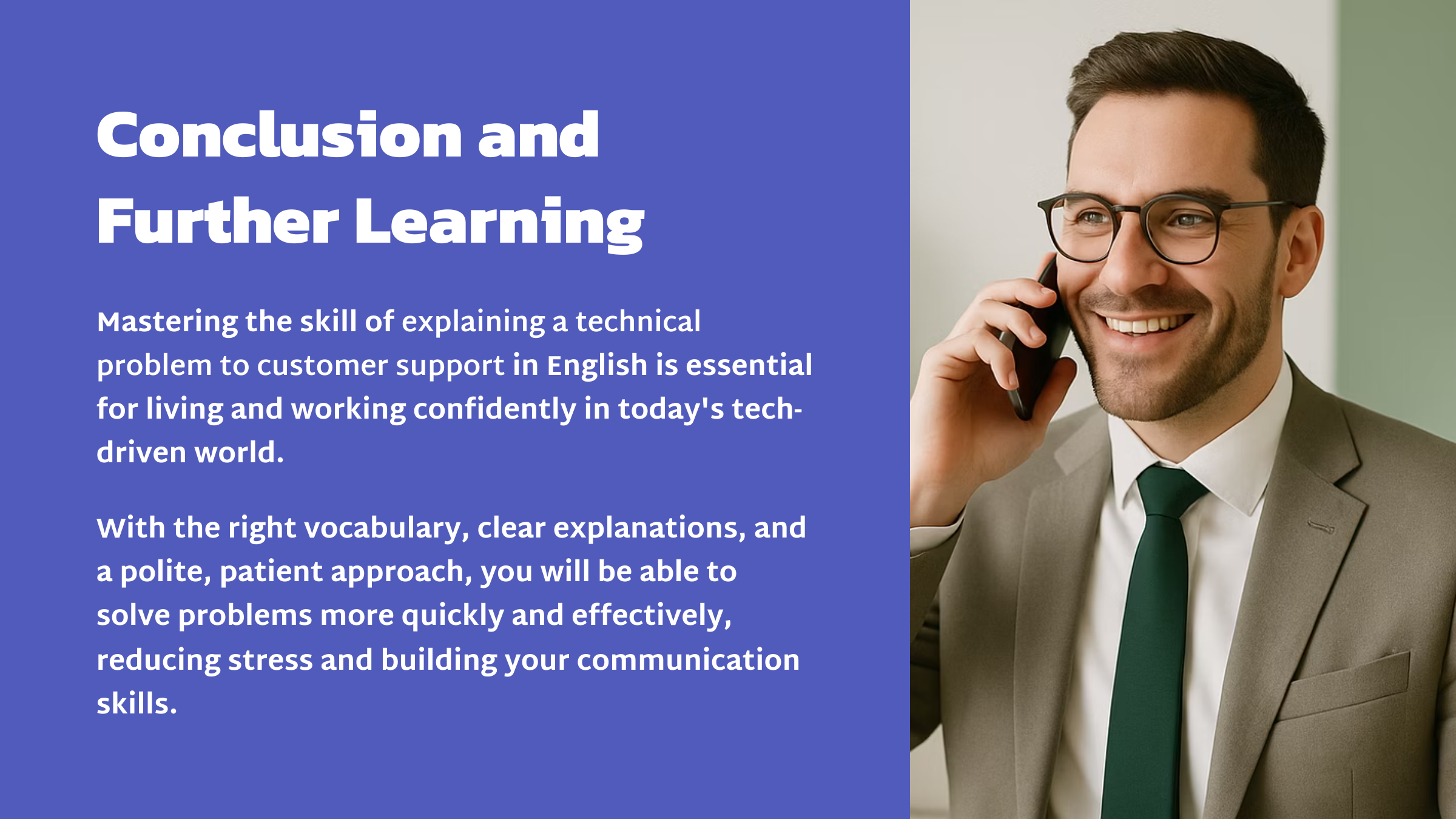
Mastering the skill of explaining a technical problem to customer support in English is essential for living and working confidently in today’s tech-driven world. With the right vocabulary, clear explanations, and a polite, patient approach, you will be able to solve problems more quickly and effectively, reducing stress and building your communication skills.
Keep practising! The more you use these strategies and phrases in real situations, the more natural and effective you will become. Remember: each interaction with customer support is an opportunity to improve your English in a meaningful, real-world context.
Looking for more real-life English?
Explore our next article on the Lingexam Language Academy website:
“Asking for Directions” – a complete tutorial to help you navigate new places confidently in English. Keep learning, keep improving, and remember—you’re capable of mastering every conversation situation!